To collect application usage data for a client, you need to deploy the ScalePad Agent to each of their devices. The agent is deployed through your RMM using a script generated on the Deployment page.
This article covers how to access the deployment instructions, verify that devices have been deployed, and manage devices and users after deployment.
What you'll need
- A Lifecycle Manager Pro subscription.
- Access to an RMM that supports script deployment to your client's devices
Opening the deployment page
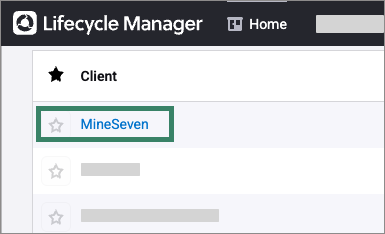
- In the top navigation bar, click Home to access the Client list.
-
Select a client by clicking their name. The Client's Profile page will open.
-
In the left navigation panel, click Saas Management.
- In the top right of the SaaS Management page, click Agent Deployment.
The Deployment page displays the client's enrollment token, a link to the deployment instructions, and tabs for reviewing Installed Devices and Users.
Running the deployment script
The Deployment page includes a deployment script that has everything you need to deploy the ScalePad Agent to your client's devices, including the enrollment token. Scripts are available for both Windows and MacOS.
Important
We recommend deploying the agent through your RMM instead of installing it manually.
Downloading and double-clicking the installer skips the enrollment token, causing a missing-token error and registration failures.
Copying and running the deployment script by hand creates the token, but the install can still fail partially unless you run it with system-level permissions.
Your RMM handles both automatically.
- On the Deployment page, click Show Deployment Instructions.
- In the Deployment Instructions panel, select the Windows or MacOS tab for the target operating system.
- Copy the deployment script using the copy icon (
 ).
). - Run the script through your RMM against the devices you want to deploy to.
The script downloads and installs the ScalePad Agent, embeds the enrollment token, and automatically installs the browser extensions for Chrome, Edge, Brave and Firefox.
Note
Browsers must be restarted for the browser extensions' functionality to take effect.
If you manage your browser plugins using a separate tool, the Deployment instructions panel also includes direct links to each browser extension and instructions for skipping browser extension installation in the script.
Verifying deployment
After the script has run on a device, the device appears in the Installed Devices tab on the Deployment page. Application usage data is typically available within 24 hours of deployment.
To verify deployment:
- On the Deployment page, click the Installed Devices tab.
- Confirm that the deployed devices appear in the list.
- Check the Status (Last Seen) column to see when the agent last checked in.
Managing devices and users
The Deployment page has two tabs for managing devices and users after deployment.
Installed Devices
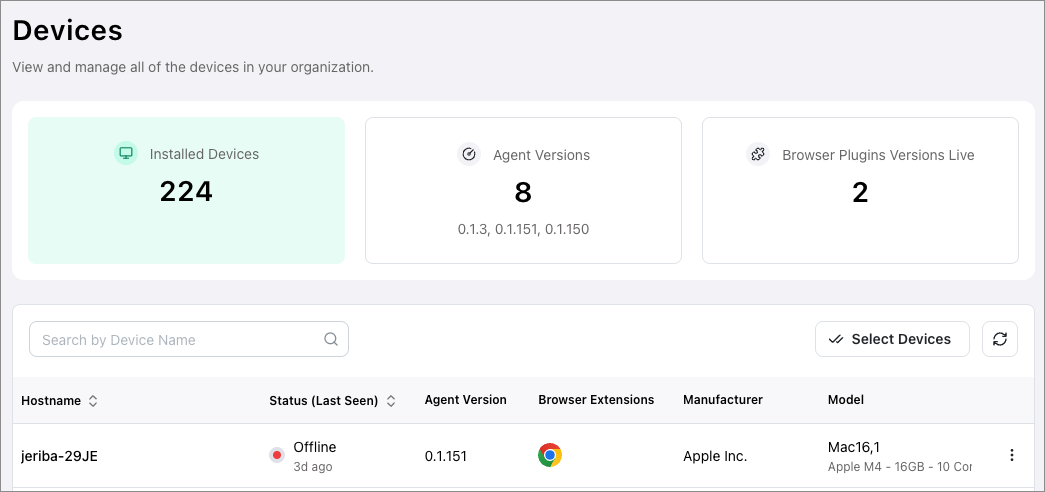
The Installed Devices tab lists every device with the ScalePad Agent installed. Above the table, three summary cards show the total number of installed devices, the agent versions in use across your client, and the number of live browser plugin versions.
To find a specific device, use the search bar above the table to search by device name.
Each row's context menu ( ) lets you deactivate or delete an individual device.
Bulk editing devices
To deactivate or delete multiple devices at once:
- Click Select Devices in the top right of the table.
- Click each device you want to deactivate or delete.
- In the bar at the bottom of the page, click Deactivate Devices or Delete Devices.
To exit selection mode without making any changes, click Cancel Selection.
Users
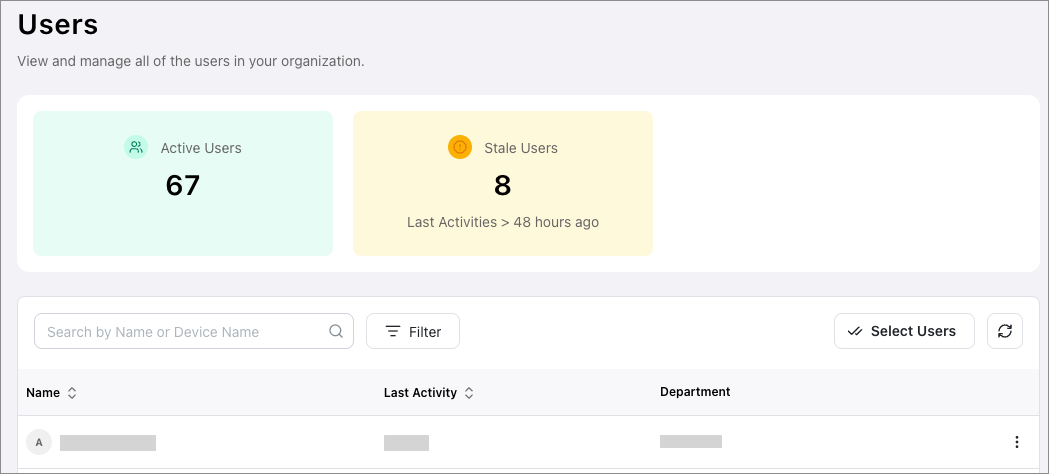
The Users tab shows every user detected by the ScalePad Agent across the client's devices. Above the table, two summary cards show the number of active users and the number of stale users (users whose last activity was more than 48 hours ago).
To find a specific user, use the search bar above the table to search by user name. You can also use the Filter button to narrow the list by:
- Status
Active, Stale, or Deactivated. - Department
Any department in the client's environment.
Each row's context menu lets you assign a user to a department or change the user's activation status.
Bulk editing users
To update multiple users at once:
- Click Select Users in the top right of the table.
- Click each user you want to update.
- In the bar at the bottom of the page, click one of the following actions:
- Assign department
Assign the selected users to a department. - Activate Users
Activate selected users. - Deactivate Users
Deactivate active users.
To exit selection mode without making any changes, click Cancel Selection.
| Any questions? Reach out to our Lifecycle Manager support team by submitting a support ticket. |
| :sparkles: NEW :sparkles: Join our MSP Power-Ups - Free 15-minute micro-workshops + live Q&A with our Lifecycle Manager experts. Sign up here to reserve your spot. |